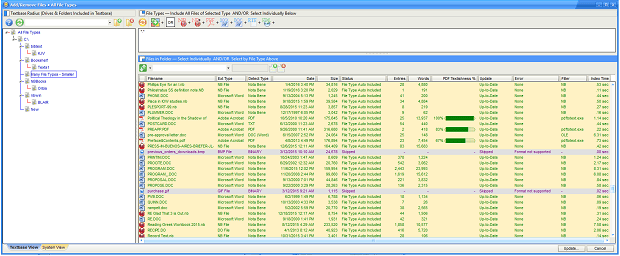
There are now two ways to view the full file with the matching text, fully formatted:
- Ctrl+O — opens the file in the default program for such files for further editing
- The file is opened, with the cursor at the top of the file
- The words at the beginning of the matching entry are copied to the clipboard, and can be pasted into the default program’s find function to help you go to the proper location
- This works similarly under Windows and on the Mac
- Alt+P — in the default configuration, opens the Popup Viewer (currently, View, Popup Viewer on the Mac)
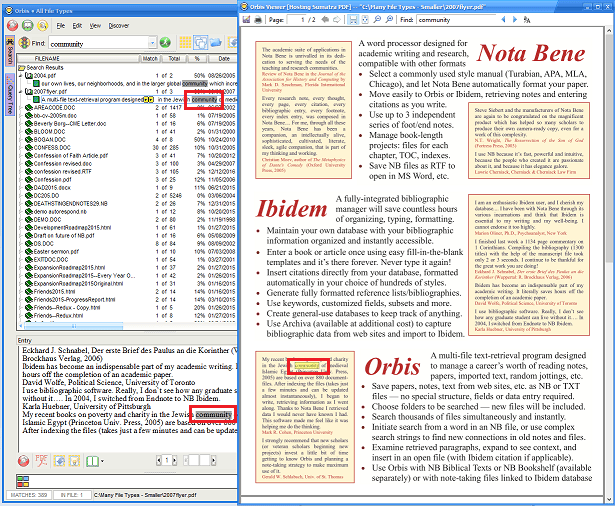
- PDF files (Windows and Mac)
- All matching terms in the file are now highlighted, and the file is opened to the page containing the match
- HTML files
- All matching terms in the file are now highlighted, and the page is opened to the entry containing the matching (indicated by a red ==> arrow)
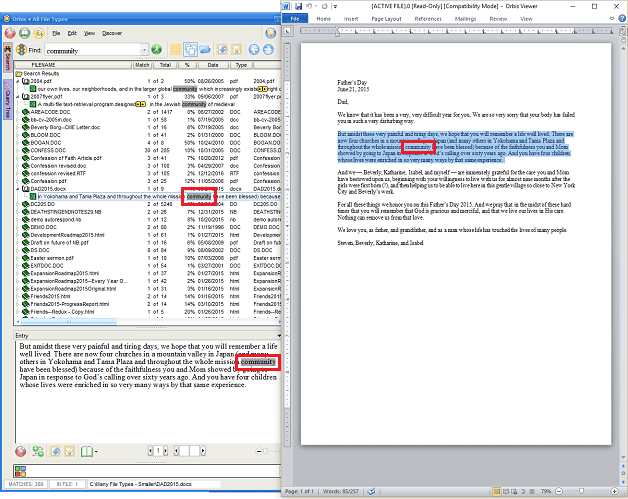
- DOCX, DOC, and RTF files
- If Word is installed on your Windows system, the matching entry will be selected and highlighted
- There are a wide variety of other viewer options under File, Configure Viewers, each with its own characteristics, but in most cases the default options above are the most powerful
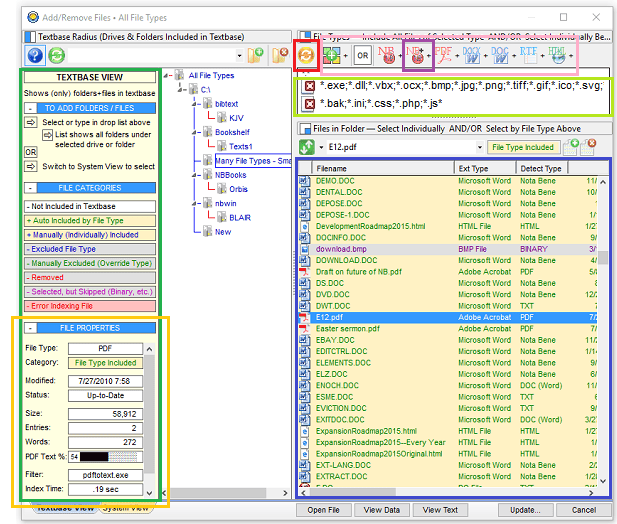
To facilitate management of files in a textbase, a full list of file properties are now displayed:
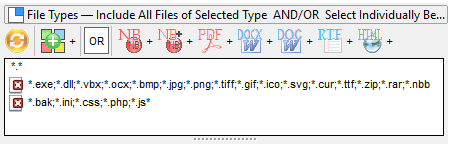
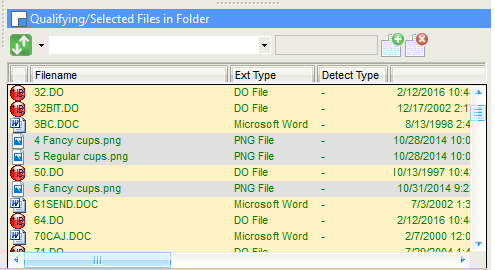
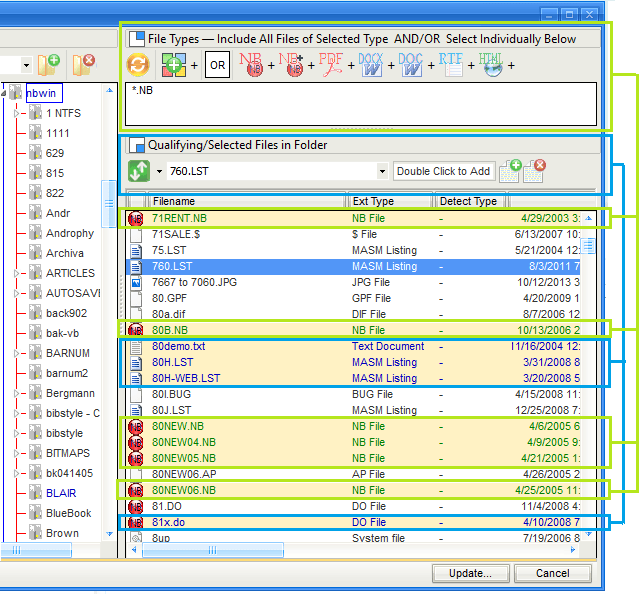
- In the File Pane of the Add/Remove Files dialog
- In the indexer log file
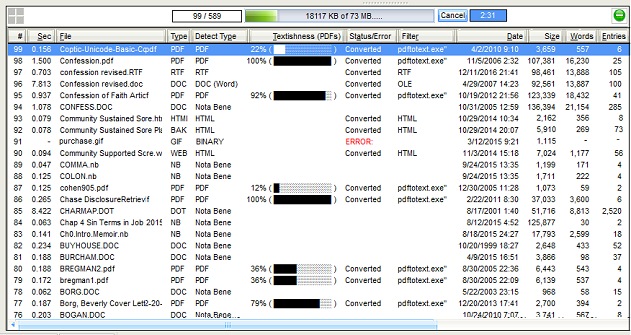
Among the data shown are the following:
- The file name
- The time required to index the file
- The file type as recognized by Windows (based on the file extension)
- The file type as detected by Nota Bene
- The “textishness” of a PDF file — a calculation of how much text (as opposed to images, which cannot be searched) in a PDF file
- Most PDF files created today contain text (for the non-image portions of those files), but older files, such as scanned in from books or older storage media, are often images
- The status of the file, including whether it:
- Was converted/required text extraction
- Caused an error (because the file was unreadable in principle [for example, it was a program or an image, and was thus “binary”] or in fact (the file was in principle readable, but produced some error)
- The filter or program used to extract text from the file
- The date of the file
- The size of the file
- The number of words in the file
- The number of entries in the file
Together, these two data-rich summaries should make it much easier to make sure that you are retrieving all the information that can be retrieved
- You can easily see which PDF files contain searchable information
- You can you easily see (and, if desired, remove) any files that are problematic/unsearchable
In addition to viewing information about each file, in both the indexer log and on the Add/Remove Files dialog there are options to:
- Open the file in the default program used to open that file so you can view its contents as understood by the program that created it
- View the binary, uninterpreted, text of the file, as it would appear if you called up the file in a text editor
- View the text that is extracted from that file (if the file required text extraction)
- Remove the file from the textbase (if it is not searchable, or its properties show that it does not merit inclusion in the textbase)
These file properties should give you full control over all files on your system, letting you determine the usefulness of searches on them. All told, they should make it easy for you to select all files (*.*) for inclusion in Orbis, and later exclude the problematic ones, thus making sure that Orbis searches everything that is useful.
|